In this world of an endless quest for information (I’m speaking of the great Internet), it is common to stumble upon old websites or websites that have been generated by an old software. A perfect example of this would be howtos, which, while they are very useful, really look like someone shitted on my monitor. Since I’m using one the Best Browser(tm), that is Firefox, I’ve been trying to tackle this problem. The angle of attack will be userContent.css. Many Firefox hacks are based on this file. To have more information on this file and on how to create it (and where), please read the Customizing Mozilla page.
In this file, we will be adding a new set of rules which will give a default behavior to old web pages. Some things to note about these changes. First, I did not include !important so that newer websites can still define their styles. Secondly, I’ve spent some times in adding/removing tags so that the very vast majority of websites are unaffected by theses changes, while the old websites are much better (in my opinion). Here are the content of the file:
body {   font-family:     Calibri, Verdana, Arial, Helvetica, sans-serif; }

h1 { font-size:     175% }

h2 { font-size:     145% }

h3 { font-size:     120% }

h4 { font-size:     105% }

h5 { font-size:     80%  }

h6 { font-size:     65%  }

a[href] {color: #1133ff;}

a[href]:hover{text-decoration:underline;}

a[href]:visited{color: #1133ff;}

code,kbd,pre,samp,tt {   font-family:     Consolas, "Courier New", Courier, monospace; }

hr {

color:           #999999;

background:      transparent;

height:          1px;	/* Required for IE/Win */

padding:         0;

border-color:    #999999;

border-width:    1px;

border-style:    none none solid none;

}

ol { list-style: decimal outside; }

ul { list-style: round   outside; }

ol ul,

ol ol ul,

ol ul ul,

ul ul,

ul ol ul,

ul ul ul {

list-style:      square outside;

}

table{

border-collapse: collapse;

border-spacing:  0;

empty-cells:     show;

}

fieldset { border: none; }
You can download the file directly, if you prefer so. After that, restart Firefox, and browse to an old website.
Here is a comparison of the two rendering (before/after).
Before:
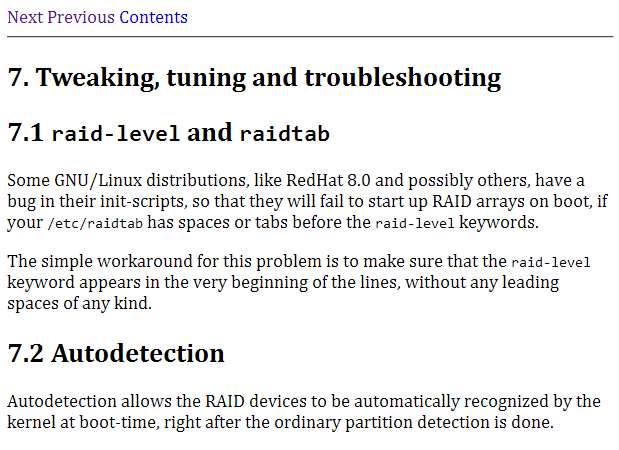 After:

 Recently, I tried (as many) the recent beta of Safari on Windows. While the experience was far from nice (crashes, problem with rendering…) I noticed something very interesting : Apple is including the latest version of their Lucida Grande font in the package. This is quite nice, because the only version you can usually find on the Internet are old one with some characters missing (most notably the €). This package comes with the 5.0 version which is, I believe, the latest. These fonts are very readable at small font size, so they are a (among some others) perfect choice for a system font. It’s no surprise that the MacOS X desktop looks slick with these fonts. But now you can also have them in you Linux box ! Here are the instructions for Ubuntu, you can adapt them for Debian or your other distro of choice. If you don’t want to extract the font yourself, skip the first part.
 With Firefox 2.0, many good things came. Among them are spell checker, anti phising, better tabs and so on (insert your favorite here)… Alas, it also broke two of my favorites extensions: OpenDownload and Tab Mix Plus (well, tab mix plus is now compatible). I used Tab Mix Plus for only one thing: open a tab for every search, bookmark or address I type in. So I searched for a easier method to do that. First, let’s fix the searchbar. Fireup configuration by typing about:config in the address bar, then search for « browser.search.openintab » in the list. If it does exists (it should), change it for « true » instead of false. Now every search opens up a new tab. Ahh, much better !